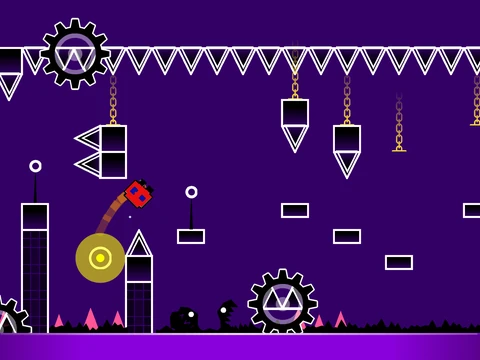
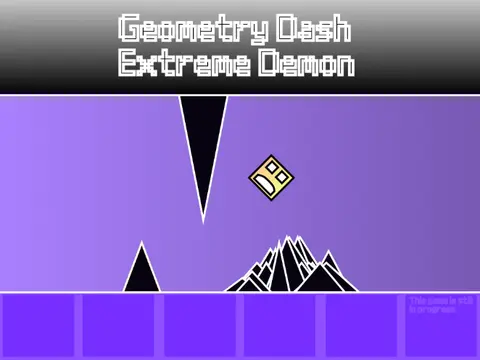
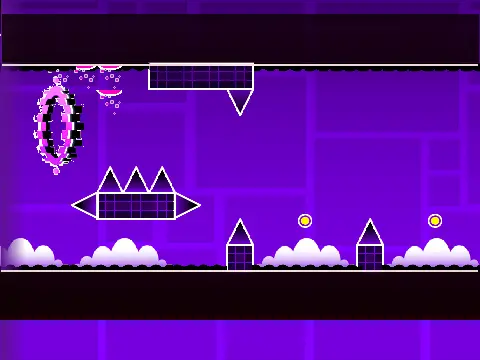
geometry dash - wave challenge
Geometry Dash Level Editor & Player: Create and Play Custom Levels
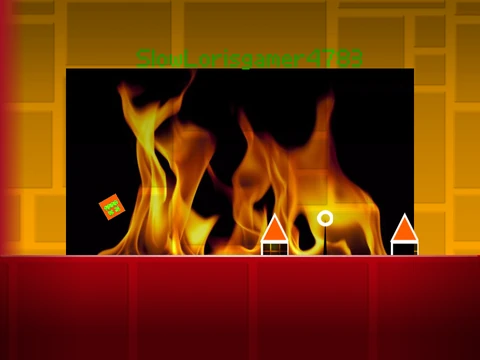
Experience a powerful, browser-based Geometry Dash level editor and gameplay simulator built by the community. This project goes beyond a single level, offering a full creative suite to design, test, and play custom Geometry Dash challenges. Important Performance Note: For optimal smoothness, play this on Turbowarp.org or enable Turbo Mode, as it handles complex projects better than standard Scratch.
Dual-Mode Functionality: Play & Create
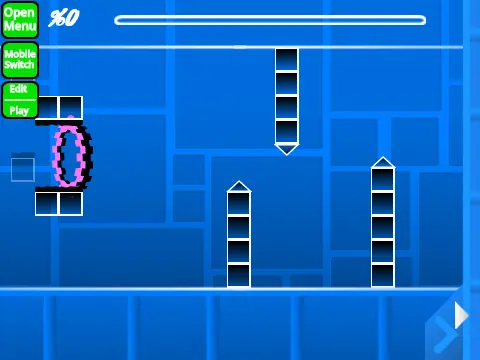
Switch instantly between Play Mode and Editor Mode by pressing 'Z' and 'M'. In Play Mode, test community levels or your own creations. In Editor Mode, unleash your creativity with a vast toolbox developed over multiple updates.
Comprehensive Editor Features & Controls
The editor is packed with professional-grade tools, including:
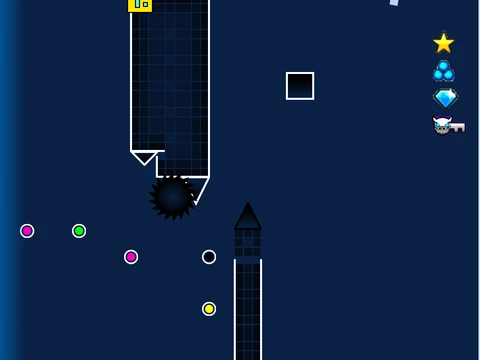
- All Game Modes: Cube, Ship, Ball, UFO, Wave, Robot, Spider, and Swing Copter.
- Advanced Triggers: Move, Alpha (transparency), Color, Camera control, Size, and Instant Count triggers.
- Interactive Objects: Gravity, Size, Mirror, Dual, and Teleport portals. Yellow and blue jump pads, orbs of various colors, and dash orbs.
- Visuals & Decor: 3D objects, lazers, breakable blocks, colored and glowing blocks, particles, and a full decoration set.
Key Editor Shortcuts:
• Place & Edit: 1/3 cycle menus, 4/5 select blocks, 2 for eraser, click to place.
• Rotate: 'R' for rotation, 'T' for 45-degree increments, 'E' for nudge menu.
• Menus: 'F' for Triggers, 'B' for Detection, 'I'/'O' for Settings, 'O'/'P' for Debug.
• Save/Load: Press '9' to save your layout, '0' to load it.
Player Controls & Features
- Basic Action: Click, or press Up/W/Space to jump, fly, or activate.
- Practice Tools: Press 'Z' in Practice Mode to set checkpoints. Use 'I' and 'O' to toggle No-Clip mode for easier testing.
- Rating System: After completing a level, use number keys 0-9 to vote on its quality.
For Creators: How To Use
Adding Music: Enter the backdrop area, remove existing sounds, and upload your own music file.
Saving Your Level: Always remix the project to start. Then, simply use the standard "Save" function in Scratch/Turbowarp to keep your progress.
The developer is active in the community and offers to rate user levels and provides a detailed tips guide for the editor.
This project represents a significant achievement in community-driven Geometry Dash content creation, offering a deep and authentic editing experience.