Instinct s Osu V1
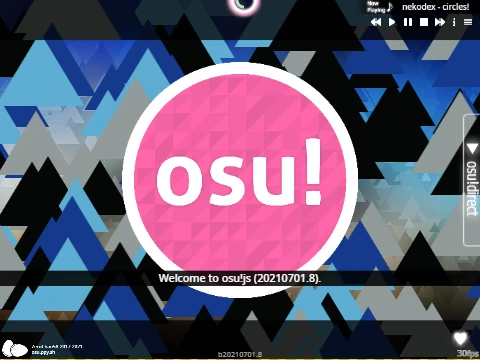
Instinct s Osu V1: The Customizable Fan-Made Rhythm Game
For players who love Osu! Mania and crave deep customization, Instinct s Osu V1 stands out. It's more than just a playable clone; it's a platform that empowers you to modify nearly every visual aspect and import your own music library. This guide covers its core gameplay and, most importantly, the detailed steps to make the game truly your own with custom skins and beatmaps.
Core Gameplay & Basic Customization
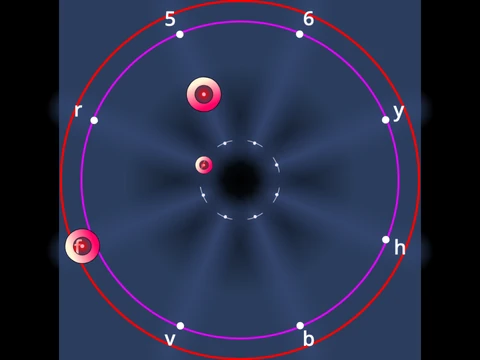
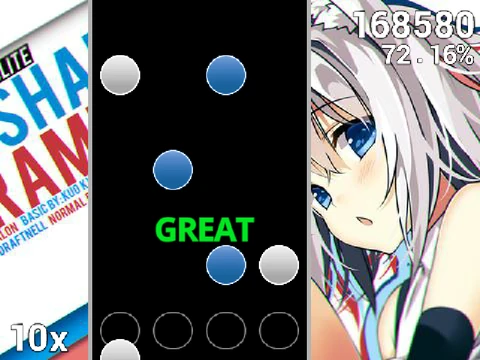
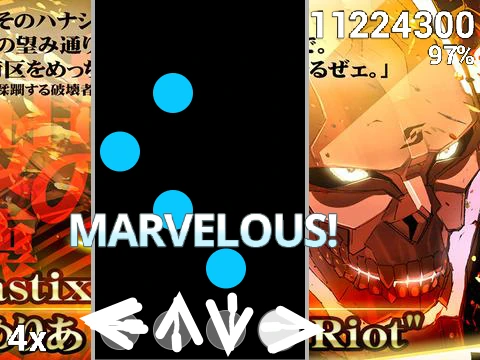
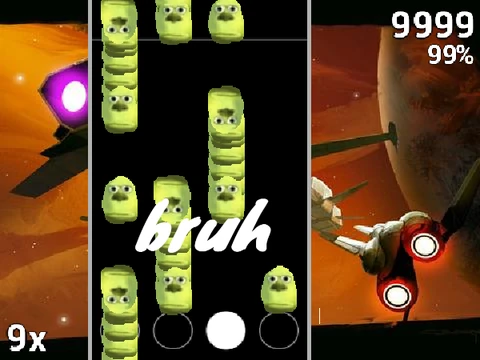
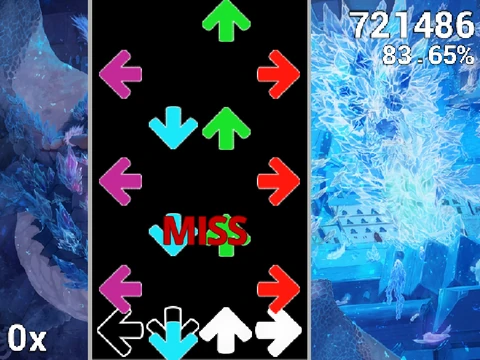
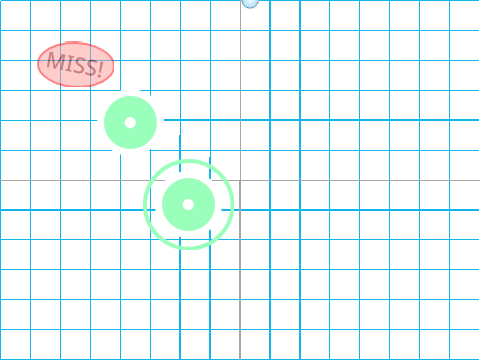
The game follows the standard 4-key (4K) Osu! Mania format. Hit notes with the D, F, J, and K keys as they fall, holding down those with extended tails. You can change all key binds in the options, and press P to quit a map instantly. A standout feature is the extensive skin color customization. You can input specific numeric codes to change element colors, for example: 25500 for dark orange, 100149237 for indigo purple, or 2232550 for lime green.
How to Add Your Own Osu! Mania Beatmaps (Complete Guide)
This is the game's most powerful feature. You can import any 4K beatmap from the official Osu! game. Here's how:
- Prepare Your Map: Have the .osu file of your desired 4K beatmap ready. Open it in the osu! editor and click File > Open Song Folder to find it.
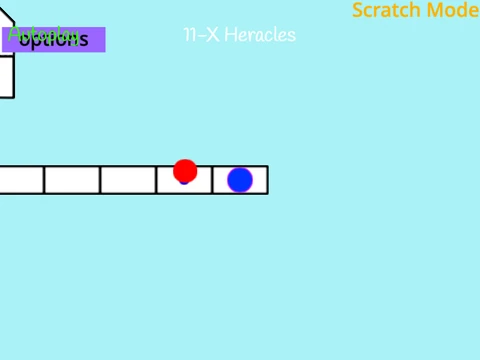
- Remix & Clear: Remix this Scratch project. Go to the 'Map Master' sprite and clear all existing beatmap data using the provided code blocks. Also, remove all songs and backgrounds from the 'background' sprite.
- Process the .osu File: Copy the entire content of your .osu file. For Scratch to read it correctly, you need to add
\\n to the end of every line. You can use an online tool like PineTools to automate this. You may also remove the [Editor] and [Events] sections and ensure the AudioFileName is correct.
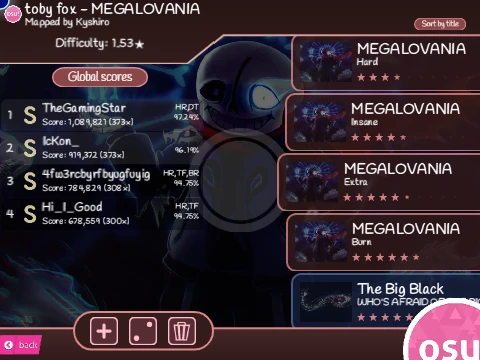
- Import & Finalize: Paste the converted text into the project using the code blocks in the 'Map Master' sprite. Add your song and background files to the 'background' sprite, ensuring their names match the AudioFileName exactly (case-sensitive). Finally, add a new outfit in the 'Song Button' sprite named in the format "SongTitle//DifficultyName" to display your map in the list.
Creating and Adding Custom Skins
You can edit the game sprites directly to change the appearance of notes, receptors, and other elements. The game can use standard Osu! skin image assets. A key tip: receptor images need to be cropped to 176 pixels in height from the bottom so the active hit area is centered. To add a whole new skin set, create new sprites named in the pattern "(skin-name)-(sprite-name)" and then edit the 'Option Note Skin' sprite to include your new skin in the menu.