Osu Mania V3 auto play bot remix
Osu Mania V3 Auto Play Bot Remix: A Toolkit for Customization
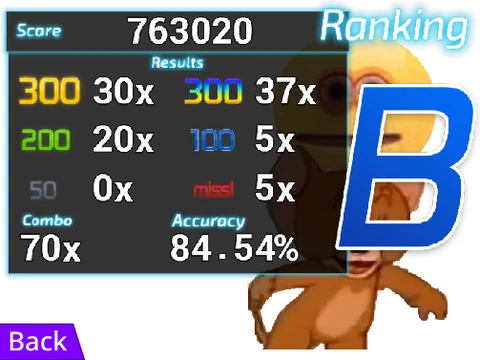
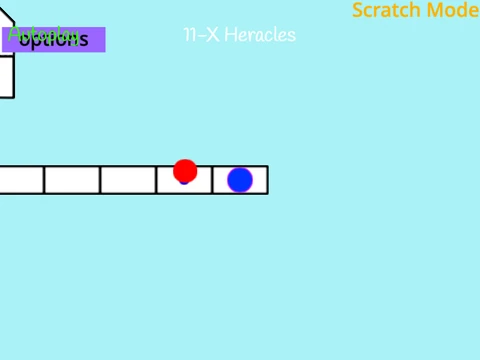
This project is more than just a game; it's a customizable platform based on osu!mania V3. It serves as a demonstration and a toolkit, particularly useful for seeing how an "auto-play bot" performs. More importantly, it provides extensive, step-by-step documentation for players who want to import their own music and completely reskin the game's visuals.
Gameplay Fundamentals
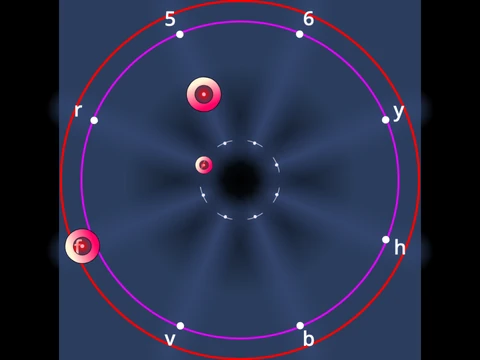
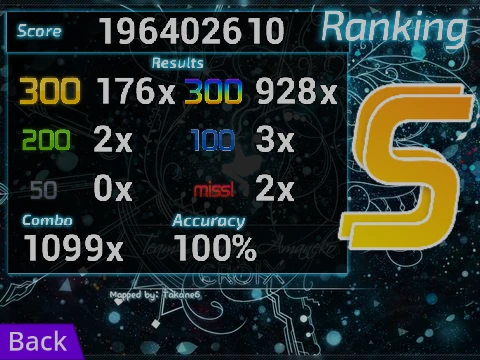
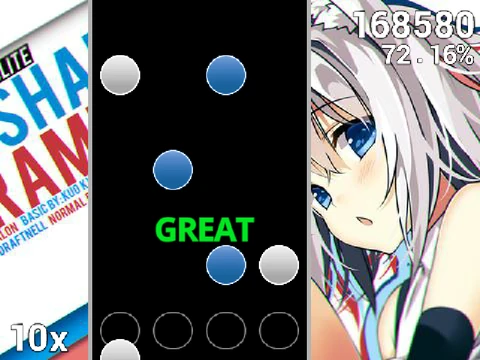
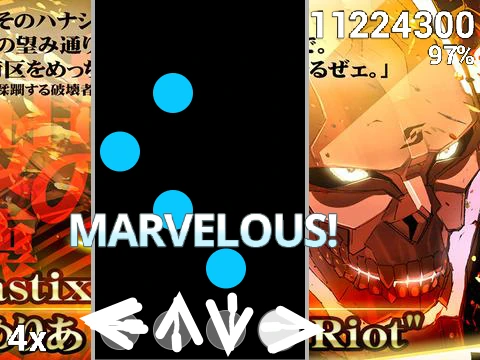
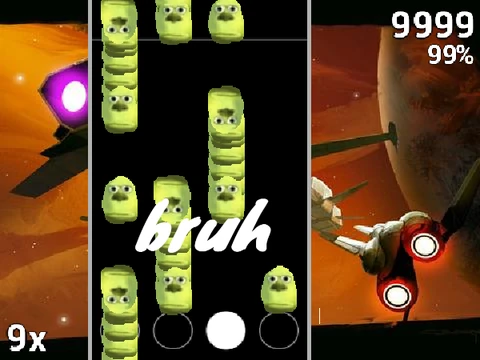
The core rhythm gameplay remains intact. Use the D, F, J, and K keys to hit notes in their respective columns as they fall onto the receptor line. Accuracy is key for a high score. Long notes with an extension require you to hold the key down for their entire duration. You can instantly exit a map by pressing P. All control keys can be reconfigured in the options.
Complete Guide to Adding Custom Beatmaps
The detailed tutorial is a central feature. To add your own beatmaps, start by remixing this project. Then, navigate to the 'Map Master' sprite and clear the existing beatmap data.
- Locate the .osu file for your chosen song (e.g., from your osu! editor's song folder).
- Copy the file's contents. You may optionally remove the 'Editor' and 'Events' sections and verify the AudioFileName.
- Use a tool like PineTools to add "\\n" to the end of every line, which is required for Scratch to parse the data correctly.
- Import this modified text into the project using the code blocks in the Map Master sprite.
- Add the song audio and background image to the background sprite, ensuring their filenames match the AudioFileName from the .osu file.
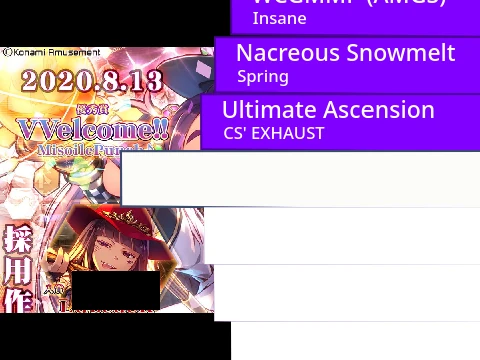
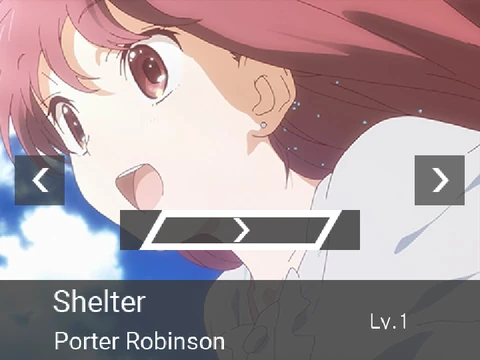
- Finally, create a new outfit in the 'Song Button' sprite named in the "Title//Version" format to display your song in the selection menu.
Creating and Importing Custom Skins
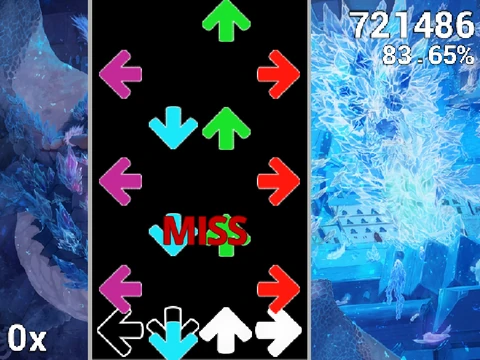
This remix offers deep visual customization. You can edit the existing note and receptor sprites directly. For importing assets from official osu! skins, note that receptor images need to be prepared: crop them to 176 pixels in height from the bottom to center the active area. To add entirely new skin sets, create new sprites following the naming convention "(skin name)-(sprite name)" and then edit the "Option Note Skin" sprite to make your new skin selectable in the game's options.